
Using Trello Email Reports
Something I don't talk about much, but figured it was about time!

Sorry we’re a little late today, I’ve been answering a bunch of Trello questions in my inbox and need to get back to yall!
Btw, did you know if you have Trello questions you can reply to this email and I’ll do my best to answer? (I prioritize responding to my premium subscribers, so make sure you are one if you wanna get bumped to the top!)
Ever wish you could wake up to a perfectly organized email with all your daily tasks waiting for you? I got a question about this recently because there’s a lot of confusion around report variables and formatting so I thought I’d share the answer with the rest of the class.
Special shoutout to my premium sponsors!
Thanks to:
Trello Consulting done differently
Amazing Fields
Build custom workflows with extra data for cards with formulas, formatting, styling, custom fields, and everything else you could imagine needing to make Trello do your bidding.Turn Trello into a business hub with robust Power-Ups for recruitment, customer support, employee directory, knowledge base and more.
The best all in one power-up for planning, tracking and managing work across boards. Use extended board, reports, master boards, Gantt views and card mirroring across boards.
Unito
With Unito you can easily connect Trello to your other business critical apps with live bi-directional sync. In just a few minutes you can create your first flow, no coding or technical resources needed. Try it free today.Sendboard - Email for Trello
Organize & automate your Email in Trello. Connect any Trello board with Gmail, Outlook, Yahoo & more.Do more and enhance your Trello experience with the Handy Power-Ups Pack! Discover a variety of Power-Ups designed to boost your and your team’s productivity. Try them out with a free trial and experience the difference today!
2-Way Card Mirror & Sync by FullZinc
Sync cards across boards and workspaces! Any edits to one card will be automatically mirrored to any other cards.
Log Work – Time Tracking & Reporting for Trello
Easily log time on cards and build custom reports across multiple boards by users, boards, or any custom field. Powerful, flexible, and built to fit your workflow. Unlock more advanced functionality when used together with Any Fields Power-Up.

🗞 Using Reports in Trello
This week I helped troubleshoot a super common automation issue: email reports. You set everything up, wait excitedly for your first automated email showing all your Trello cards... and get a blank email. This happens if you don’t understand how to use and reference report variables for creating reports in Trello.
When you use the “create a report” you have to create a variable name with it and then reference that in the message. So in the create report action, you’ve gotta click that button next to “report” and type a name for the variable. And then in the message you reference that with {$variableName}.
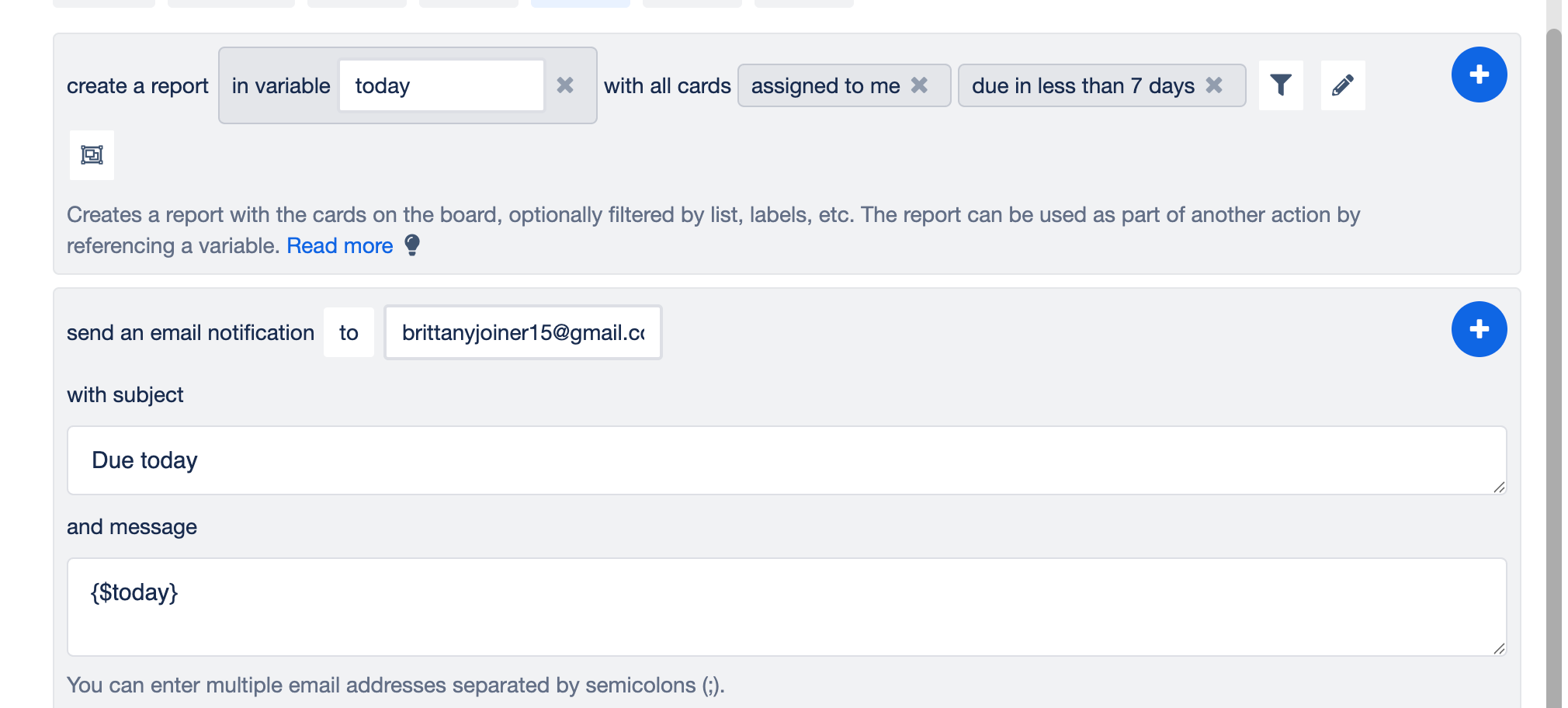
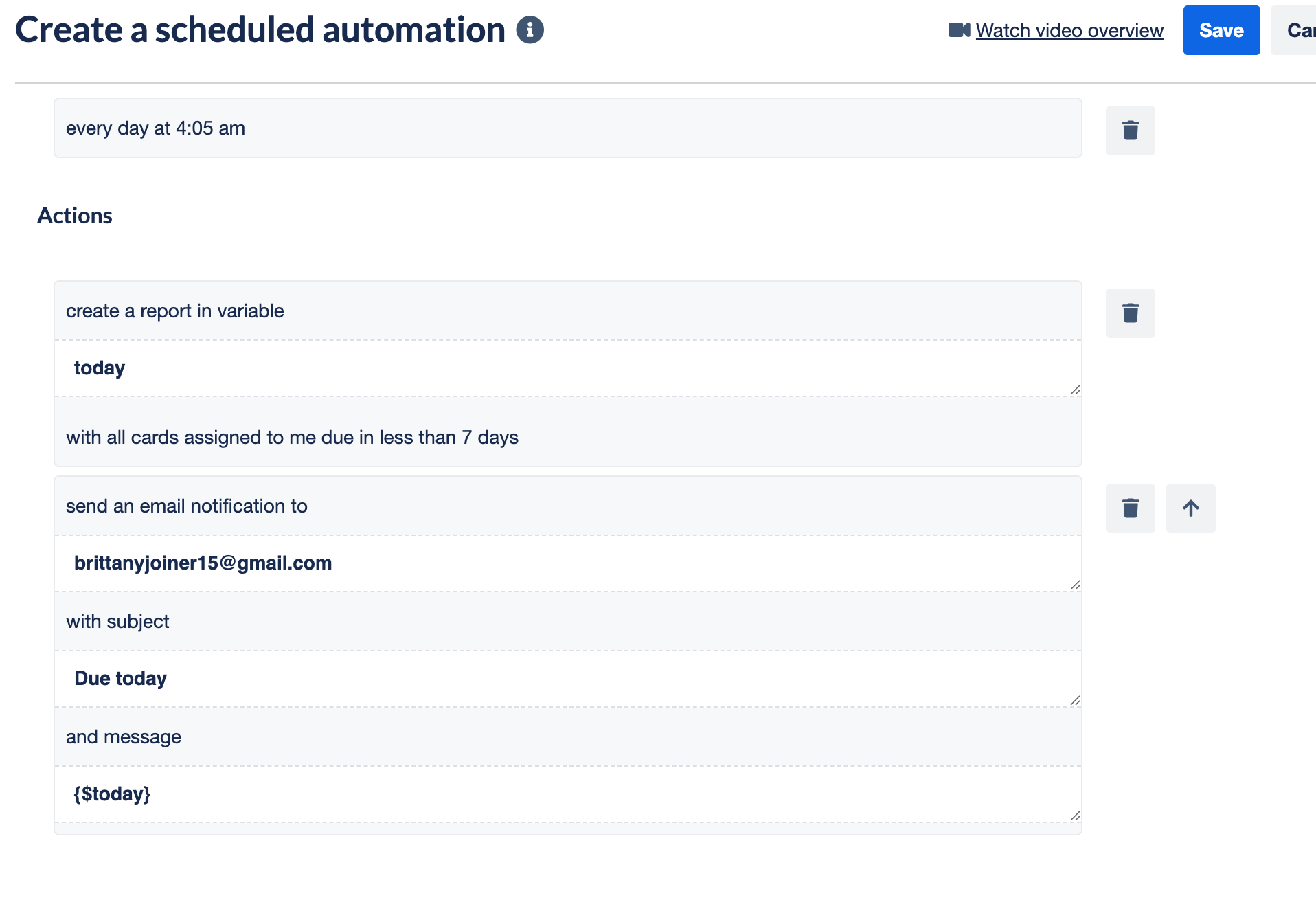
This is how it looks above once you’ve clicked the blue plus to add each step:
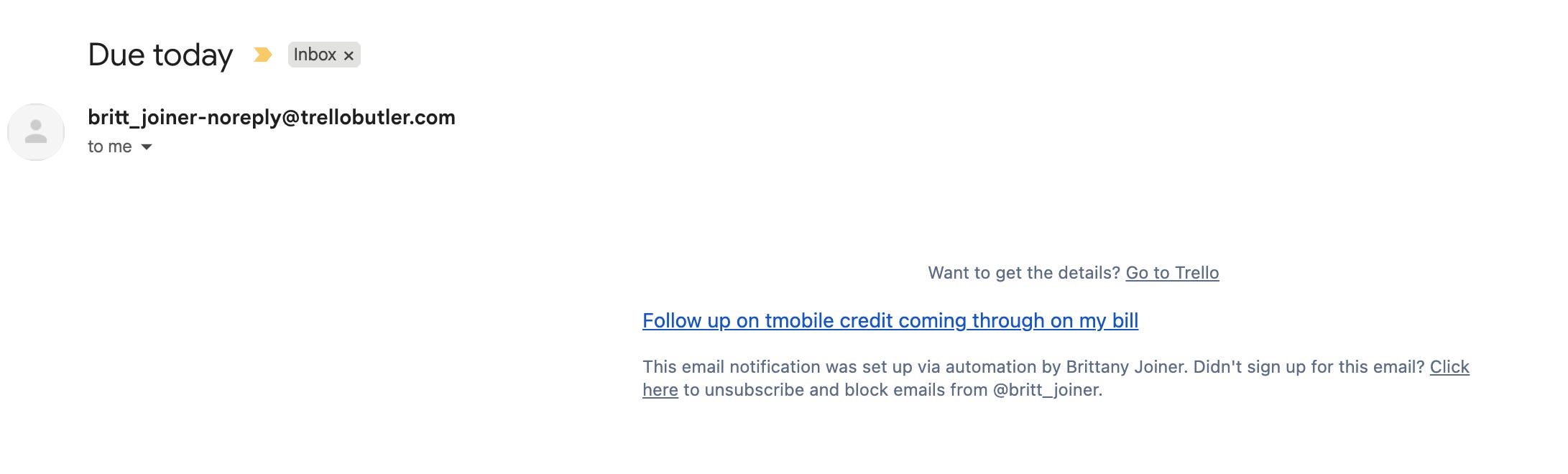
And here’s the email you get:
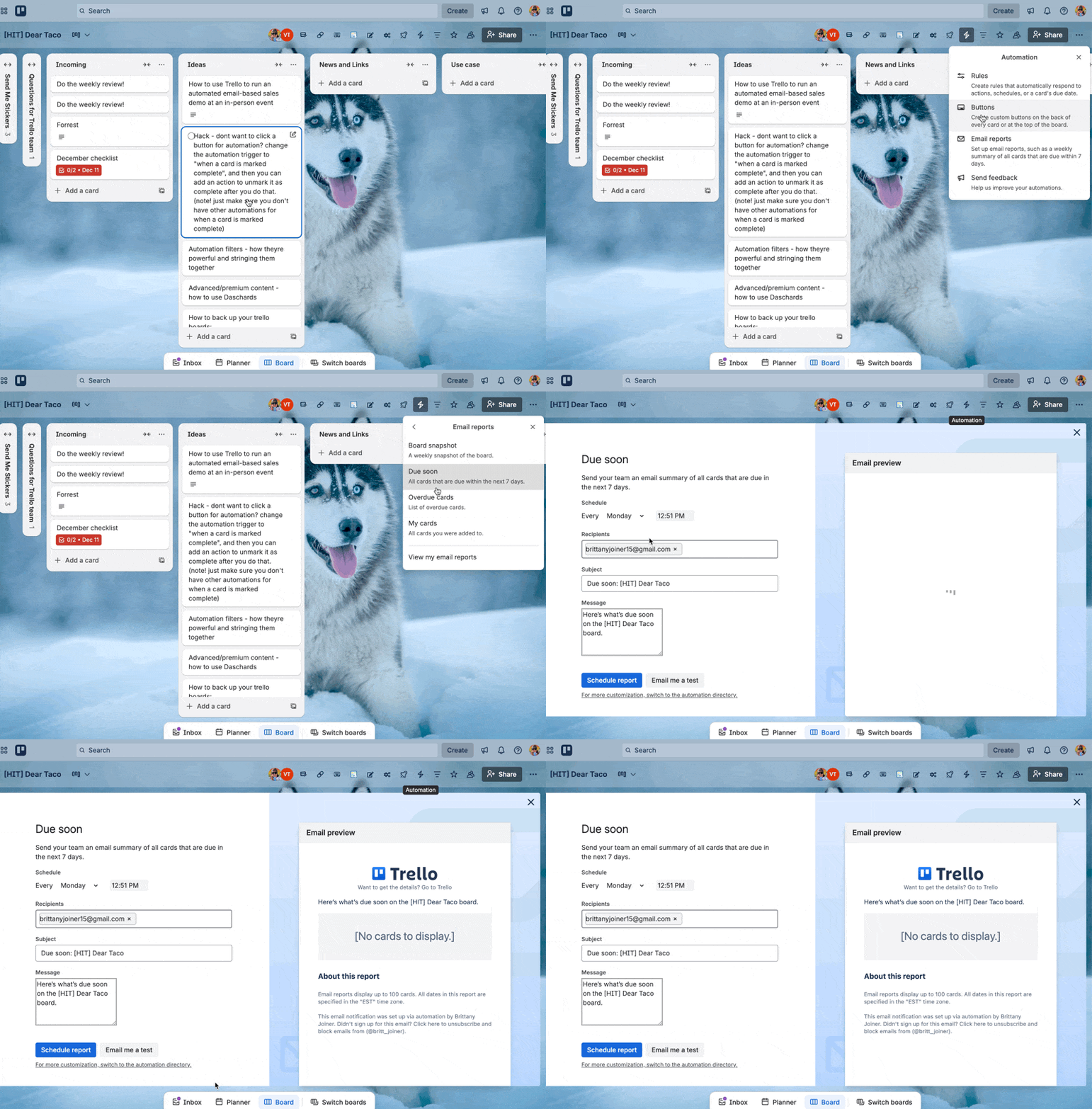
If you want a super easy way to get started with email reports in Trello, click the lightning button at the top of the page, and choose Email Reports. You’ll see some simple prompts for setting up common email reports.
Thanks for reading!! I’ll see ya next week 👋